'%20/%3e%3cpath%20d='M206%20112%20L206%20232%20L310%20172%20Z'%20fill='%23fff'%20/%3e%3crect%20x='96'%20y='288'%20width='320'%20height='48'%20rx='24'%20fill='%23fff'%20fill-opacity='0.35'%20/%3e%3crect%20x='96'%20y='288'%20width='196'%20height='48'%20rx='24'%20fill='%23fff'%20/%3e%3crect%20x='136'%20y='364'%20width='240'%20height='48'%20rx='24'%20fill='%23fff'%20fill-opacity='0.35'%20/%3e%3c/svg%3e) Kara3
Kara3Tracks: compare and edit subtitles in several languages side by side
Updated October 3, 2026
A song often has several sets of subtitles: the original lyrics, a translation, the readings, or someone else's version. Kara3 puts them in one project as tracks. Each track has its own row on the timeline, so their timing and text are easy to compare.
Import another set of subtitles
Choose File > Import subtitles as a track and pick a subtitle file. It is added as a new track named after the file. srv3, SRT, VTT, SBV and ASS are supported.
- The subtitles already there are not replaced, and the colors, positions and other styles of the two files don't affect each other.
- In a project with no subtitles yet, importing works like File > Open.
Tracks on the timeline
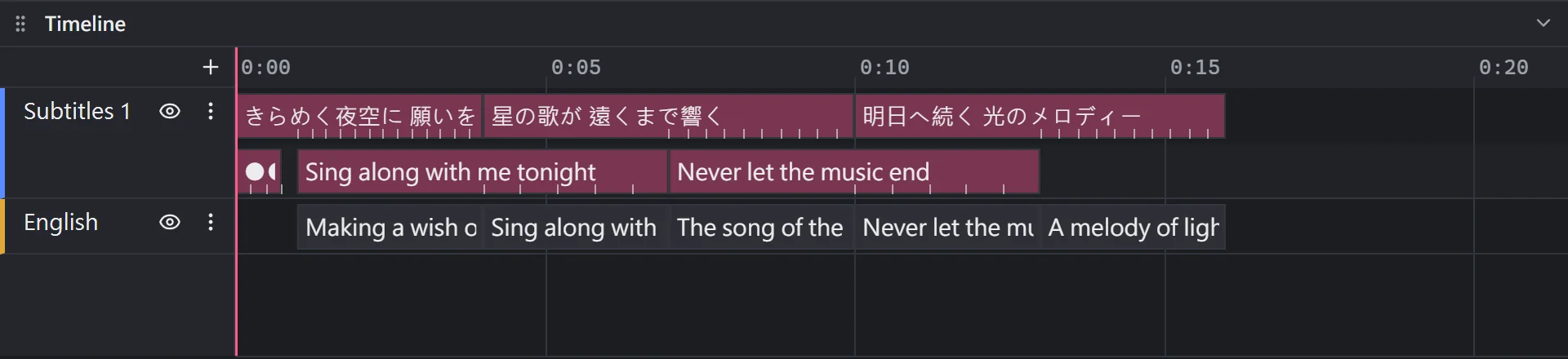
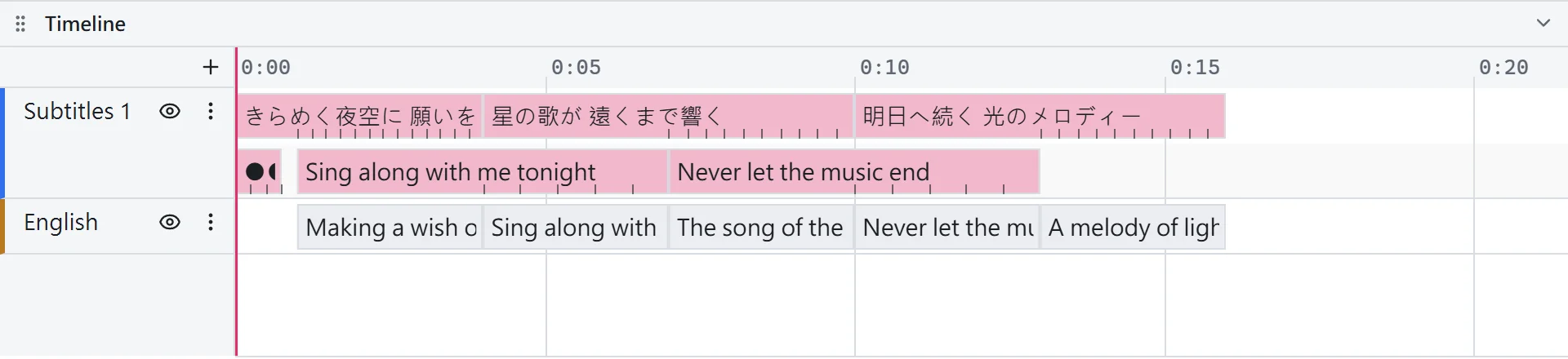
Each track has a header on the left of the timeline:
- Click the name to select all lines on the track, for example to move them in time or restyle them together.
- Double-click the name to rename the track.
- The eye hides or shows the track. A hidden track shrinks to a thin strip on the timeline, is left out of the video preview and the subtitle list, and its lines can't be selected.
- ⋮ has Select all, Rename, Move up, Move down, Duplicate track and Delete track. Deleting a track deletes the lines on it too.
The + at the top of the headers adds an empty track. Adding, renaming, moving and deleting tracks can all be undone with Ctrl+Z.
Duplicate track copies every line of the track, with its timing, styles and karaoke, to a new track right below it. To translate by hand, duplicate the lyrics and type the translation over the copy: each line keeps its timing and position. The copy sits at the same place on screen as the original, so hide the original or move the copy with the style panel.
Move lines to another track
- Select the lines and choose a track under Subtitles > Move to track, or New track to put them on a new one.
- Or drag the lines up or down onto another track on the timeline.
A new line goes on the track of the line that is selected.
Show one track in the subtitle list
With two or more tracks, a ⋮ button appears at the right of the subtitle list's title bar. Under Show tracks, choose all tracks or just one.
- All tracks: the lines of every track in time order, each marked with its track's color on the left.
- One track: the title shows the track's name, such as "Subtitle lines · English".
Reading lines from automatic ruby
When automatic ruby adds the readings as a line of its own, the reading lines go on a track of their own, named like "Subtitles 1 Pinyin (Chinese)". Running it again uses the same track and replaces the reading lines on it.
Export
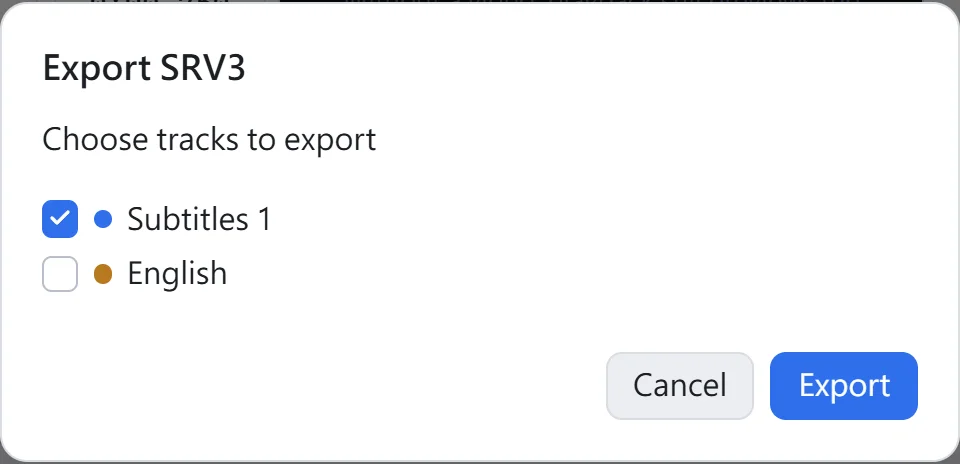
When a project has two or more tracks, exporting first lists them all, with the tracks being shown ticked.
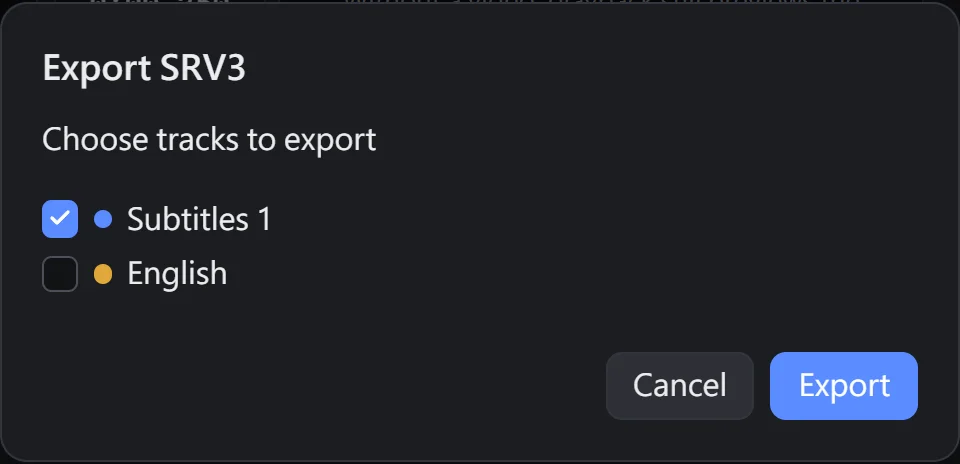
- With just one track ticked, its name goes into the file name, such as "song.English.srv3".
- YouTube takes one subtitle file per language, so export and upload each language separately.
- Tick the lyrics and their reading track together to get one file that shows both on YouTube.
The tracks, which track each line is on, and which tracks are hidden are all saved in the project file (.kara3). An exported subtitle file has no tracks; it just holds the lines that were ticked.